Documentation
Voyager, start to finish
Install the theme, import a demo in one click, then make it yours: trips, destinations, maps and 13 travel elements that work the same in Elementor and the block editor.
Start here
01Getting started
Voyager is a travel blog and travel guide theme. The theme handles the design. The bundled Voyager Core plugin adds trips, destinations, maps and 13 travel elements, and each one works in both Elementor and the block editor.
01.1Requirements
| What | Minimum | Notes |
|---|---|---|
| WordPress | 6.5+ | Tested up to 7.1. |
| PHP | 7.4+ | PHP 8.1 or newer is faster. |
| Elementor | Free version | Required: the demo homepages are built with Elementor. Elementor Pro is optional. |
| Memory | 128 MB | The demo import runs in small steps, so cheap hosting works. |
01.2What is in the download
| File | What it is |
|---|---|
voyager.zip | The theme. Upload this one in WordPress. |
voyager-child.zip | An empty child theme for your own code changes (optional). |
Plugins/voyager-core.zip | Voyager Core. A copy is already inside the theme, so you never upload it by hand. |
Documentation/ | This guide, for reading offline. |
Licensing/ | GPL license and credits for photos, fonts and libraries. |
01.3Install the theme
- Go to Appearance›Themes›Add New Theme›Upload Theme.
- Choose
voyager.zip(not the whole download) and click Install Now. - Click Activate. A notice asks you to install the required plugins. The next topic covers it.
If you see “The link you followed has expired”, your host limits upload size. Ask the host to raise upload_max_filesize to 16 MB, or upload the unzipped voyager folder to wp-content/themes/ by FTP.
If you plan to change theme code, also install voyager-child.zip and activate Voyager Child. See Child theme.
Setup
02Required plugins
Voyager asks for two plugins. It installs them for you through TGM Plugin Activation.
| Plugin | Where it comes from | Why |
|---|---|---|
| Voyager Core 1.0.0 | Bundled inside the theme (voyager/plugins/voyager-core.zip) | Trips, destinations, the 13 travel elements, the newsletter list and the demo importer. |
| Elementor | WordPress.org (free) | Page builder for the demo homepages. You can still write stories in the block editor. |
- After you activate Voyager, click Begin installing plugins in the notice, or go to Appearance›Install Plugins.
- Tick both plugins, choose Install from the bulk actions and click Apply.
- Go back to the same screen, tick both again and choose Activate.
The Appearance›Install Plugins screen disappears once both plugins are installed and active. If you dismissed the notice, it returns when a required plugin is missing.
Updates: when a new Voyager version ships with a newer Voyager Core, the same screen offers the update.
One click
03Import the demo
Go to Appearance›Voyager Demos. The importer can bring in the whole demo website, a single homepage, or one page. It can also remove all of it again.

03.1Full Website (recommended)
Imports all 6 homepages, every Elements page, 36 stories, 5 trips, 14 destinations, photos, menus, widgets, Theme Options and Elementor settings. Before you start, pick which homepage becomes your front page.
- Install and activate Voyager Core and Elementor first (the importer checks for them).
- Pick the Front page after import and click Import the full website.
- Watch the progress bar. It works in short steps: checking requirements, adding authors, creating categories, continents and countries, copying photos, importing stories, trips, destinations and pages, linking everything together, building menus, placing widgets, applying theme options and elementor settings, setting the front page, finishing up.
- Click View your site when it says All done!
Each step takes a few seconds, so slow hosting never times out. If you close the tab, the job waits for you. Open the screen again and it continues where it stopped.
03.2Choose your front page
Click Set as front page under any homepage. If that homepage is not on your site yet, the importer brings it in first, with its photos.
03.3Import a single demo page
Use this to borrow one layout, such as the About page or one Elements page. Its travel elements show your own trips and destinations.
03.4Running it again
Re-running an import never duplicates anything: each imported item is found again by its import key. Pages you have edited since the import are left alone, so a re-run cannot overwrite your work. Untouched items are refreshed.
03.5Remove imported demo content
This deletes only what the importer created: pages, stories, trips, destinations, photos and menus. It then restores your earlier Theme Options, menus, widgets and front page. Your own posts and pages are never touched.
Your existing content is kept. Demo content is added next to it. On a site that already has many posts, use Import a single demo page instead.
Six looks
04The 6 homepages
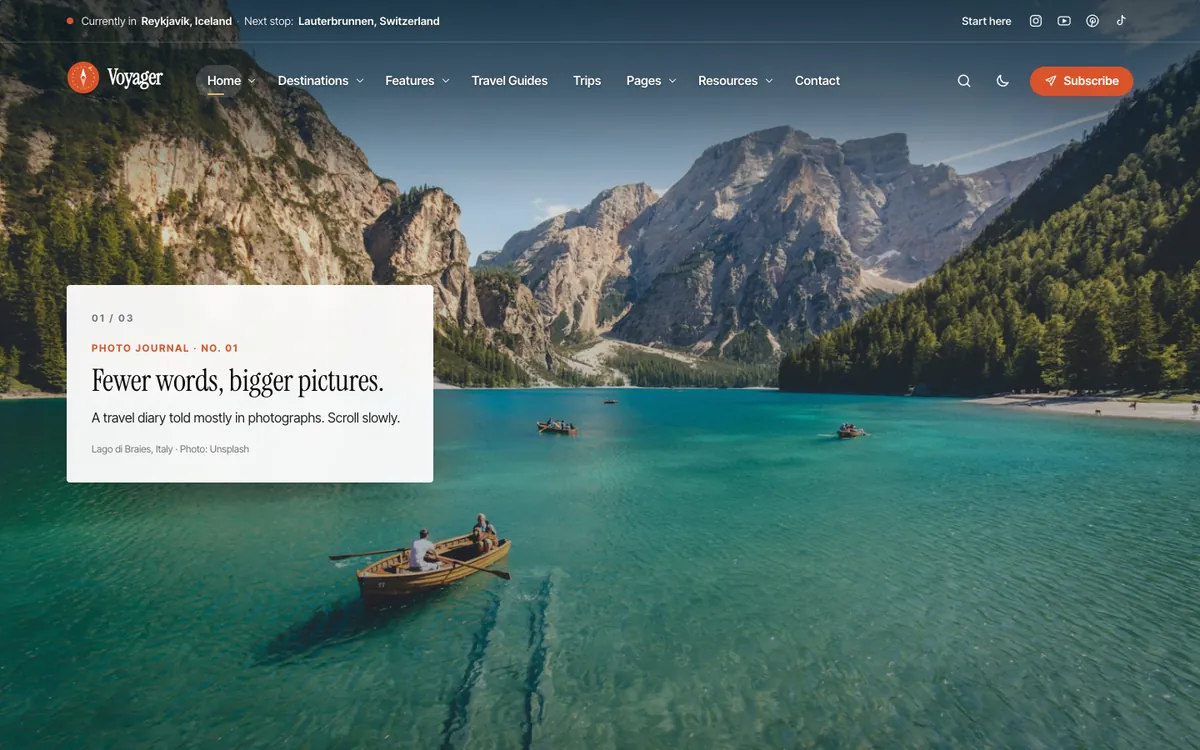
Each homepage is an ordinary Elementor page, and you can edit any section. Five of them carry their own palette, font pair and traveler. These come from the Voyager page settings box, not from global settings.


04.1Page styles
A page style changes colors, roundness and fonts on one page only. Every font is bundled with the theme and served from your own site.
| Style | Fonts | Palette |
|---|---|---|
| Rosewood (Travel Couple) | Young Serif + Nunito | |
| Basecamp (Adventure, dark) | Archivo + Inter | |
| Ivory & Gold (Luxury) | Cormorant Garamond + Jost | |
| Terracotta & Olive (Food & Travel) | DM Serif Display + DM Sans | |
| Gallery (Photo Journal) | Instrument Serif + Inter Tight |
04.2Change a homepage
- Go to Pages and open the homepage (for example “Home — Solo Traveler”) with Edit with Elementor.
- Click any section to change its text, photos or settings. The travel elements are under Voyager Travel in the widget panel.
- Click Publish. Your edited page is now protected from re-imports.
Elementor page settings: use the page template Voyager: full width (no title) for edge-to-edge sections with the Voyager header and footer.
Per page
05Voyager page settings
Each page and post has a small Voyager page settings box in the editor sidebar. Anything you leave empty falls back to Theme Options.
| Setting | Where | What it does |
|---|---|---|
| Page style | Pages | One of: Rosewood (Travel Couple), Basecamp (Adventure, dark), Ivory & Gold (Luxury), Terracotta & Olive (Food & Travel), Gallery (Photo Journal). Sets palette, fonts and corner roundness for this page. |
| Transparent header over the first photo | Pages | The header floats over the page’s first photo and turns solid after scrolling. |
| Traveler on this page | Pages | Name, photo (Media Library ID), signature, short bio, “More about me” link, and the top bar’s Currently in / Next stop. Each demo homepage uses this to show its own traveler in the footer card and the top bar. |
| Story layout | Posts | One of the 10 story layouts for this story. See Story layouts. |
| Sidebar | Posts | Right, left or none for this story (Theme Options default when empty). |
In the block editor, the box is at the bottom of the Post or Page sidebar under “Meta Boxes”. In Elementor, open the page in the WordPress editor once to change these settings, then return to Elementor.
To find a photo’s ID, open it in Media›Library. The number after item= in the address bar is the ID.
Elementor + blocks
06The 13 travel elements
Maps, itineraries, budgets, packing lists and more, all built for travel writing. The settings tables below come straight from the plugin.
Every element is built once and shows up in both builders. The settings and the output are the same in each, so a page made in Elementor and one made with blocks look identical.
| Builder | Where to find the elements |
|---|---|
| Elementor | Widget panel → category Voyager Travel (or search “Voyager”). |
| Block editor | Block inserter (+) → category Voyager Travel (or type “/” and the name). |
Elements load their CSS and JavaScript only on pages that use them. A story without a map loads no map code.
06.1Booking Box
Hotel, flight and tour recommendation cards with ratings, prices and sponsored links.
Links get rel=”sponsored noopener”. The disclosure line shows above the cards, as the FTC asks for affiliate links.

| Setting | Type | Choices and notes |
|---|---|---|
| Title | Text | |
| Intro | Text area | |
| Cards | List | Each item: Type, Photo, Name, Location / route, Rating (0–5), Number of reviews, Price from, Currency, Price unit, Badge, Highlight as recommended, Highlights (one per line, up to 4), Button text, Link (affiliate URL) |
| Columns | Number | 1–4 |
| Layout | Choice | Cards, Wide rows |
| Open links in a new tab | On / off | |
| Disclosure | Text |
06.2Destination Guide
Best time to visit, budget, visa, language, currency, local time and live weather for a destination.
Reads the Destination guide box of the chosen destination (or the current one on a destination page). Live weather comes from Open-Meteo and needs the destination’s coordinates.

| Setting | Type | Choices and notes |
|---|---|---|
| Destination | Pick a post | One of your destinations |
| Title override | Text | Empty uses the destination name. |
| Current weather | On / off | |
| Units | Choice | °F, mph, °C, km/h |
| Live local time | On / off | |
| Layout | Choice | Photo card, Ocean band |
06.3Where Should I Go? Quiz
Four quick questions that suggest one of your destinations.
Four questions matched against each destination’s Vibes, Budget level and Best months.

| Setting | Type | Choices and notes |
|---|---|---|
| Title | Text | |
| Intro | Text area | |
| Question 1 (season) | Text | |
| Question 2 (vibe) | Text | |
| Question 3 (budget) | Text | |
| Question 4 (region) | Text | |
| Result button | Text | |
| Layout | Choice | One question at a time, All questions at once |
06.4Destinations Grid
Destination cards with a continent and country filter.
Continent and country filters work instantly in the page and are built from your Continent and Country lists.

| Setting | Type | Choices and notes |
|---|---|---|
| Title | Text | |
| Intro | Text area | |
| Start with continent | Choice | All continents, Africa, Asia, Europe, North America, Oceania, South America |
| Destinations to show | Number | 1–48 |
| Columns | Number | 2–4 |
| Continent filter | On / off | |
| Country menu | On / off | |
| Story count | On / off | |
| Tagline | On / off | |
| Budget level | On / off |
06.5Now / Next
Where you are now and where you are heading next, with dates and a mini map.
Use two destinations, or type places and coordinates. The mini map is optional.

| Setting | Type | Choices and notes |
|---|---|---|
| Title | Text | |
| Places come from | Choice | Destinations, Typed here |
| Now in | Pick a post | One of your destinations |
| Now in (place) | Text | |
| Now in (country) | Text | |
| Now: latitude | Text | |
| Now: longitude | Text | |
| Here since | Date | |
| Next stop | Pick a post | One of your destinations |
| Next stop (place) | Text | |
| Next stop (country) | Text | |
| Next: latitude | Text | |
| Next: longitude | Text | |
| Arriving on | Date | |
| Short note | Text | |
| Mini map | On / off | |
| Layout | Choice | Card, Compact (sidebars), Pill (one line, for heroes and bars) |
06.6Packing List
Grouped packing checklists readers can tick off and print.
Visitors’ ticks are saved in their own browser (the “Storage key” keeps two lists apart) and the list can be printed.

| Setting | Type | Choices and notes |
|---|---|---|
| Title | Text | |
| Intro | Text area | |
| Groups | List | Each item: Group name, Items (one per line) |
| Columns | Number | 1–3 |
| Progress bar | On / off | |
| Print button | On / off | |
| Storage name (optional) | Text | Lists with the same name share ticks across pages. |
06.7Photo Story
A full-screen scroll story with big photos and short captions.

| Setting | Type | Choices and notes |
|---|---|---|
| Slides | List | Each item: Photo, Small label, Title, Caption, Caption position, Photo credit |
| Slide height | Choice | Full screen, Tall (80% of the screen) |
| Photo shade (%) | Number | 0–80 |
| Slide counter (01 / 05) | On / off |
06.8Post Grid & Slider
Travel story cards as a grid, list, photo overlay or slider.
Sources: latest stories, a category, a trip, or a destination. The slider script loads only for the slider layout.

| Setting | Type | Choices and notes |
|---|---|---|
| Title | Text | |
| Stories from | Choice | Latest, A category, A trip, A destination |
| Category | Choice | 15 choices |
| Trip | Pick a post | One of your trips |
| Destination | Pick a post | One of your destinations |
| Number of stories | Number | 1–24 |
| Skip the first | Number | 0–50 |
| Order | Choice | Newest, Title A–Z, Most discussed |
| Layout | Choice | Grid, List, Photo overlay, Bento: one big lead + four, Masonry: photos at their own shape, Slider |
| Columns | Number | 1–4 |
| Excerpt | On / off | |
| Date and reading time | On / off | |
| Category pill | On / off | |
| “View all” text | Text | |
| “View all” link | Link |
06.9Travel Map
Every destination on a map, with visited countries shaded and the stories of each place.
Pins come from destinations with coordinates. Countries you have visited are shaded; a click opens the stories of that place. Choose all destinations, one continent, or one trip.

| Setting | Type | Choices and notes |
|---|---|---|
| Title | Text | |
| Intro | Text area | |
| Pins | Choice | All destinations, One continent, Destinations of one trip, Places of the current story |
| Continent | Choice | — Choose —, Africa, Asia, Europe, North America, Oceania, South America |
| Trip | Pick a post | One of your trips |
| Map height (px) | Number | 260–900 |
| Shade visited countries | On / off | |
| Group nearby pins | On / off | |
| Show country counts below the map | On / off | |
| Zoom with the mouse wheel | On / off | Off keeps page scrolling smooth; visitors zoom with the buttons or pinch. |
| Frame | Choice | Rounded card, Flat, edge to edge |
06.10Travel Stats
Animated travel counters: countries, cities, miles or kilometers, days on the road.
Numbers count up once when they scroll into view (no motion for visitors who prefer reduced motion).

| Setting | Type | Choices and notes |
|---|---|---|
| Stats | List | Each item: Icon, Number, After the number, Label |
| Design | Choice | Soft cards, Minimal with dividers, Ocean band |
| Columns | Number | 1–6 On phones the stats show two per row. |
| Alignment | Choice | Center, Left |
| Count up when visible | On / off | |
| Count duration (ms) | Number | 300–5000 |
| Accent color | Color | Icons and numbers. Empty uses the theme accent. |
06.11Trip Budget
Where the money went: a donut or bar chart by category with totals, per day and per person.
Reads Budget by category, Travelers and the trip dates from a trip, or takes numbers typed in the element.

| Setting | Type | Choices and notes |
|---|---|---|
| Numbers come from | Choice | A trip (Trips → Trip plan), Entered here |
| Trip | Pick a post | One of your trips |
| Title | Text | Empty uses “What it cost” (or the trip name). |
| Categories | List | Each item: Category, Amount, Color (empty = palette) |
| Currency | Choice | USD ($), EUR (€), GBP (£), JPY (¥), CAD (CA$), AUD (A$), MXN (MX$), THB (฿), INR (₹), ZAR (R) |
| Days | Number | 1–999 |
| Travelers | Number | 1–50 |
| Chart | Choice | Donut, Bars |
| Show cost per day | On / off | |
| Show cost per person | On / off | |
| Note under the chart | Text |
06.12Trip Itinerary
A day-by-day plan with places, times, costs, notes and a mini map per day.
Fill it by hand, or set the source to a trip and it reads the trip’s Itinerary lines (see Trips & destinations).

| Setting | Type | Choices and notes |
|---|---|---|
| Days come from | Choice | A trip (Trips → Trip plan), Entered here |
| Trip | Pick a post | One of your trips |
| Title | Text | With a trip, empty uses the trip name. |
| Days | List | Each item: Day title, Places (comma separated), Time, Cost, Notes, Map latitude (optional), Map longitude (optional) |
| Step name | Text | For example “Stop” for a food crawl. |
| Step name, plural | Text | |
| Currency | Choice | USD ($), EUR (€), GBP (£), JPY (¥), CAD (CA$), AUD (A$), MXN (MX$), THB (฿), INR (₹), ZAR (R) |
| Design | Choice | Timeline, Day cards |
| Mini map per day | On / off | Days with a latitude and longitude get a small map. |
| Show costs and the total | On / off |
06.13Trip Timeline
All trips on a timeline, filterable by year.
Lists your trips by start date with route and budget, with a year filter.

| Setting | Type | Choices and notes |
|---|---|---|
| Title | Text | |
| Intro | Text area | |
| Order | Choice | Newest first, Oldest first |
| Number of trips | Number | 1–100 |
| Year filter | On / off | |
| Show budget | On / off | |
| Show route | On / off | |
| Style | Choice | Alternating sides, One side |
Content
07Trips & destinations
Voyager Core adds two content types: Trips and Destinations. Link your stories to them, and maps, itineraries, budgets and the timeline fill themselves in.
| Type | Menu | Archive | Single URL |
|---|---|---|---|
| Trips | Trips | /trips/ | /trip/{name}/ |
| Destinations | Destinations | /destinations/ | /destination/{name}/ |
Three shared category lists group trips, destinations and stories: Continents</b>, <b>Countries</b>, <b>Cities.
07.1Destination boxes
| Box | Fields | Used by |
|---|---|---|
| Map location | Latitude, Longitude | Travel Map, Now / Next, Destinations Grid |
| Destination guide | Tagline, Best time to visit, Best months (numbers, e.g. 4,5,6), Budget level 1–4, Visa (US passport), Language, Local currency, Time zone (IANA, e.g. Asia/Tokyo), Vibes | Destination Guide, Where Should I Go? quiz, Destinations Grid |
Quiz vibes: Beaches & islands, Big cities, Mountains & wild nature, History & culture, Food & markets, Adventure.
To get coordinates, right-click a place on openstreetmap.org and choose “Show address”. The latitude and longitude appear on the left.
07.2Trip boxes
| Box | Fields |
|---|---|
| Trip details | Start date, End date, Route (e.g. San Francisco → Big Sur → Los Angeles), Budget, Currency (ISO code, e.g. USD) |
| Trip plan: destinations, budget, itinerary | Destinations on this trip, Budget by category (Stay, Food, Transport, Activities, Other), Travelers, Itinerary |
Itinerary format: one day per line, with parts separated by a vertical bar. The last part (coordinates) is optional and adds a mini map for that day.
Title | Places | Time | Cost | Notes | lat,lng
Arrive in Puerto Natales | Puerto Natales | All day | 120 | Pick up rental gear | -51.7308,-72.4977
Base Torres hike | Las Torres viewpoint | 8 h | 0 | Start before 7 am | -50.9423,-72.971907.3Link a story
In a post, the Travel links box (sidebar) connects the story to a trip and to destinations. Linked stories then show up on the trip and destination pages, on the map, and in Post Grid with the source “Trip” or “Destination”.
Settings
08Theme Options
One screen with 9 tabs controls colors, fonts, header, footer, blog, single stories and dark mode. You don’t need the Customizer.
Go to Appearance›Theme Options. Changes show on the whole site and click Save changes keeps them. Reset to defaults restores the original values.


08.1Colors
| Section | Option | What it does |
|---|---|---|
| Palette | Quick palettes | One click fills the colors below. Save to keep them. |
| Palette | Page background | The warm sand behind everything. |
| Palette | Cards and panels | |
| Palette | Primary | Links, buttons, the header accent. |
| Palette | Accent | Category pills, hover states, highlights. |
| Palette | Highlight | Small sunny details: stars, badges, map pins. |
| Text | Body text | |
| Text | Headings |
08.2Typography
| Section | Option | What it does |
|---|---|---|
| Fonts | Heading font | Bundled with the theme and served from your own site (no Google requests). |
| Fonts | Body font | |
| Fonts | Body text size |
08.3Layout
| Section | Option | What it does |
|---|---|---|
| Page | Content width | The widest the page gets on large screens. |
| Page | Corner roundness | Cards, photos and panels. Buttons stay pill shaped. |
08.4Header
| Section | Option | What it does |
|---|---|---|
| Layout | Header layout | An Elementor Pro Theme Builder header replaces this when one is active. |
| Layout | Sticky header | Stays at the top, slimmer, while scrolling. |
| Layout | Transparent on the homepage | Any layout floats over the first photo of a static front page. Any other page can turn it on in its Voyager page settings box. |
| Layout | Tagline under the site name | Only when no logo image is set. |
| Top bar | Top bar | A thin line above the header with where you are now and social icons. |
| Top bar | Currently in | For example “Lisbon, Portugal”. |
| Top bar | Next stop | For example “Morocco”. |
| Top bar | Small link text | For example “Start here”. Empty hides it. |
| Top bar | Small link URL | |
| Buttons | Search button | |
| Buttons | Call-to-action label | For example “Subscribe”. Empty hides the button. |
| Buttons | Call-to-action link | Empty scrolls to the newsletter in the footer. |
| Mega menus | Featured destination | Shown as a photo card in the Destinations panel. |
08.5Social
| Section | Option | What it does |
|---|---|---|
| Profiles | ||
| Profiles | YouTube | |
| Profiles | ||
| Profiles | TikTok | |
| Profiles | ||
| Profiles | X |
08.6Footer
| Section | Option | What it does |
|---|---|---|
| Layout | Footer layout | A filled “Footer 1/2/3” widget area replaces the destinations / latest stories / resources column. |
| Layout | Copyright line | Empty shows “© year Site name”. {year} is replaced by the current year. |
| Photo strip | Photo strip | Your own photos — no Instagram connection needed. |
| Photo strip | Photo IDs | Media Library IDs separated by commas. Empty uses the featured images of your latest stories. |
| Photo strip | Badge text | For example “@voyager.journal”. Links to your Instagram URL. |
| Newsletter | Newsletter form | Emails are saved on your site (with spam protection). Developers can pass them to a mail service with the voyager_newsletter_subscribed action. |
| Newsletter | Small title | |
| Newsletter | Heading | |
| Newsletter | Text | |
| Newsletter | Button | |
| Newsletter | Small print | For example “Join 12,400 readers. No spam.” |
| About the traveler | Name | Empty uses the first administrator’s display name. |
| About the traveler | Photo | Media Library ID or image URL. Empty shows the initial. |
| About the traveler | Short bio | |
| About the traveler | Signature | Written in italic under the bio. Empty uses the name. |
| About the traveler | “More about me” link | |
| Travel stats | Stats strip | |
| Travel stats | Numbers | One per line: value|label, for example 54|Countries. Empty counts countries, destinations, trips and stories on your site. |
08.7Blog
| Section | Option | What it does |
|---|---|---|
| Blog & archives | Post list | |
| Blog & archives | Grid columns | |
| Blog & archives | Sidebar on the blog page | Shows only when the Blog sidebar has widgets. |
| Blog & archives | Sidebar on archives and search | Categories, tags, authors, dates, continents, countries and search results. |
| Blog & archives | Sticky sidebar | The sidebar stays in view while a long story or list scrolls (wide screens). |
| Blog & archives | Blog page title | Empty uses “Stories from the road”. |
| Blog & archives | Blog intro | |
| Blog & archives | Excerpt length |
08.8Single post
| Section | Option | What it does |
|---|---|---|
| Post layout | Story layout | Any story can choose its own in its Voyager page settings box. |
| Post layout | Sidebar | Uses the Single post sidebar (or the Blog sidebar when that one is empty). Photo essay and Minimal reading never show one. |
| Post layout | Reading progress bar | |
| Post layout | Table of contents | Built from the H2 headings of stories with three or more. |
| Post layout | Share buttons | Plain links, no tracking scripts. |
| Post layout | Related stories | Same trip first, then the same destinations, then the same category. |
| Post layout | Author box | |
| Post layout | Previous / next story |
08.9Dark mode & motion
| Section | Option | What it does |
|---|---|---|
| Dark mode | Dark mode button in the header | Visitors can switch; their choice is remembered. |
| Dark mode | Default scheme | |
| Motion | Soft reveal animations | Cards fade in gently as they scroll into view. Never shown to visitors who prefer reduced motion. |
Layouts
09Header & footer
Choose a header and a footer layout in Appearance›Theme Options›Header and Footer. They all share the same menus, buttons and dark mode switch.
09.1Header layouts
| Layout | See it |
|---|---|
| Classic: logo left, menu, buttons right | Preview |
| Centered: big logo above the menu | Preview |
| Transparent over the homepage photo | Preview |
| Split: menu on both sides of the logo | Preview |
| Minimal: logo + full-screen menu | Preview |


The thin top bar shows where you are (Currently in) and where you go next (Next stop). Set it in Theme Options›Header›Top bar or per page in the Voyager page settings box.
09.2Footer layouts
| Layout | See it |
|---|---|
| Atlas: photo strip, newsletter, stats, five columns | Preview |
| Postcard: stamped newsletter card + polaroids | Preview |
| Minimal: newsletter line + bottom bar | Preview |
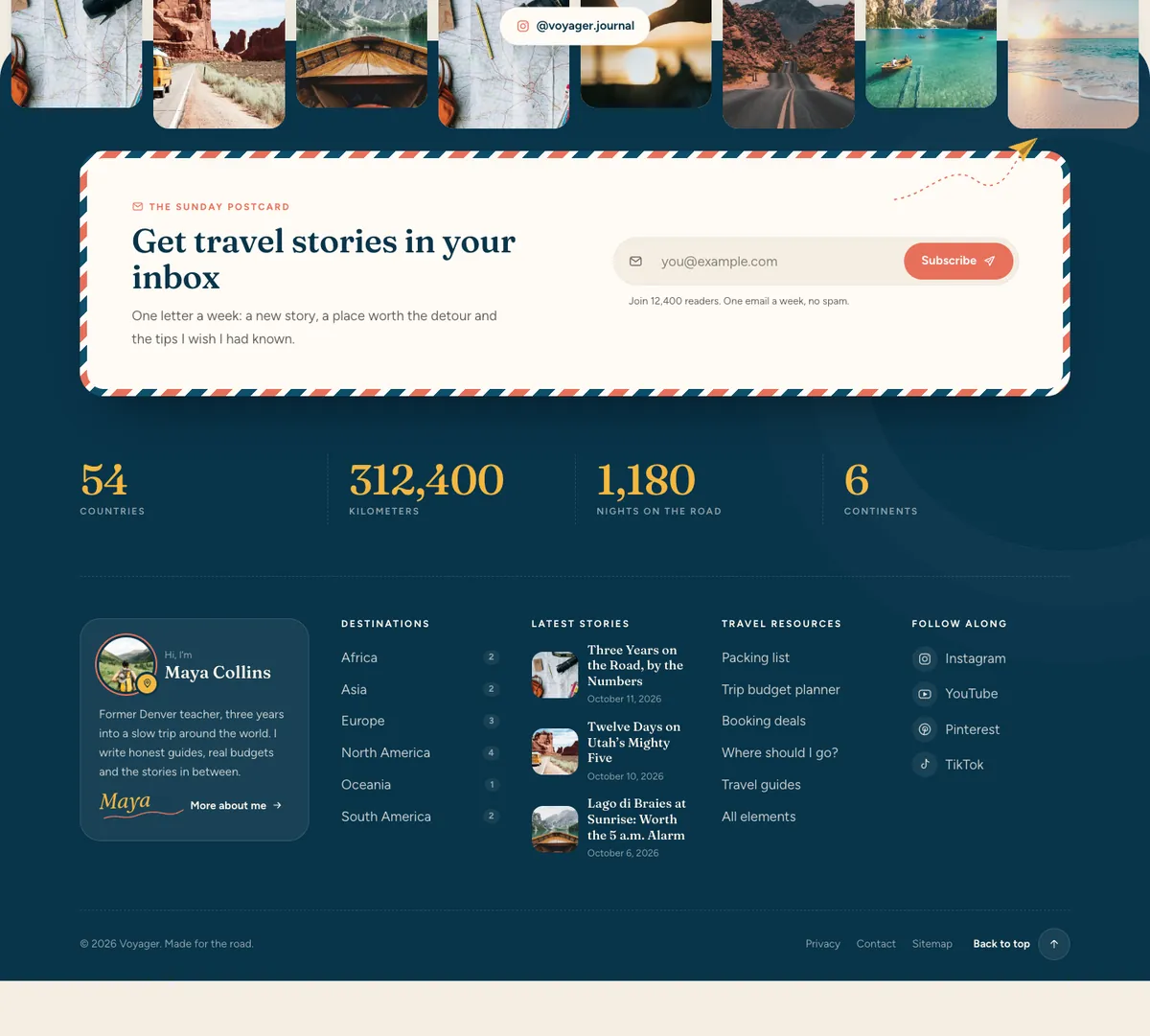


09.3Menus and widget areas
| Menu location | Name |
|---|---|
primary | Primary menu |
footer | Footer menu |
social | Social links |
resources | Footer: travel resources |
| Widget area | Name |
|---|---|
sidebar-1 | Blog sidebar |
sidebar-single | Single post sidebar |
footer-1 | Footer column 1 |
footer-2 | Footer column 2 |
footer-3 | Footer column 3 |
The main menu’s Home, Destinations and Features dropdowns are mega menus. Home links, the Destinations archive and the /elements/ page are detected automatically. For other items, open Appearance›Menus›Screen Options, tick CSS Classes, and give the parent item vy-mega-homes, vy-mega-destinations or vy-mega-features. Add vy-soon to a homepage child to show a “Coming soon” stamp. More settings are in Theme Options›Header›Mega menus.
09.4The “Pages” menu
Give a top-level menu item the CSS class vy-mega-pages and it opens a panel with an example story for each story layout, the site pages (About, Contact, Map, Trips, Destinations, Search, 404) and the archive views. On phones it becomes an accordion in the menu drawer.
With Elementor Pro, a Theme Builder header or footer replaces the Voyager one automatically.
Stories
10Story layouts
10 ways to open a story. Set the default in Theme Options›Single post, and change it for one story in its Voyager page settings box. The demo menu “Pages” links an example of each.
| Layout | Looks like | Sidebar | Example |
|---|---|---|---|
| Classic | Title, photo and story beside the sidebar | Yes | Open |
| Storyteller | Centered title, wide rounded photo | Yes | Open |
| Cover | Title over a full-screen photo | Yes | Open |
| Overlay hero | Tall photo, title on a soft gradient | Yes | Open |
| Journal | Photo beside the title, trip card | Yes | Open |
| Magazine split | Title and facts left, big photo right | Yes | Open |
| Map first | The story’s places on a map, then the story | Yes | Open |
| Postcard | Stamped postcard frame and postmark | Yes | Open |
| Photo essay | Edge-to-edge photos, no sidebar | No (one column) | Open |
| Minimal reading | Narrow column, nothing else | No (one column) | Open |


10.1Parts of every story
| Part | Switch |
|---|---|
| Reading progress bar at the top of the window | Single post›Reading progress bar |
| Reading time next to the date | Always on |
| “In this story” table of contents, built from the H2 headings (stories with three or more) | Single post›Table of contents |
| Trip and destination chips under the title (from the Travel links box) | Shown when the story is linked |
| “This story is part of the trip” card with a link back to the trip | Shown when the story is linked to a trip |
| Share buttons (Facebook, X, Pinterest, WhatsApp, email, copy link) as plain links | Single post›Share buttons |
| Author box (name, photo and the Biographical Info from the user profile) | Single post›Author box |
| Previous / next story with photos | Single post›Previous / next story |
| Related stories: same trip first, then shared destinations, then the same category | Single post›Related stories |
10.2Writing a long story
- Use H2 headings for sections: they become the table of contents.
- For a highlighted tip, add a Group block and pick the Tip box style; start it with a small heading.
- The Pullquote block is styled for one memorable line per story.
- Any travel block (itinerary, budget, packing list, booking box, destination guide) can sit inside a story.
The Map first layout shows the places from the story’s Travel links box (or its trip). The Photo essay layout lets the photos inside the story run wider than the text.
Widgets
11Sidebar & widgets
Two widget areas sit beside your stories and lists, and 12 Voyager widgets fill them. The WordPress widgets and blocks (search, categories, archives, tag cloud, calendar, latest posts and comments, RSS, menus) are styled to match.
| Widget area | Shows on |
|---|---|
| Blog sidebar | The blog page, categories, tags, authors, dates, continents, countries and search results. Also stories, when the Single post sidebar is empty. |
| Single post sidebar | Stories. |
| Setting | Where |
|---|---|
| Sidebar on the blog page: right, left or none | Theme Options›Blog |
| Sidebar on archives and search | Theme Options›Blog |
| Sticky sidebar (stays in view on wide screens; tall sidebars stick by their bottom edge) | Theme Options›Blog |
| Sidebar on stories | Theme Options›Single post |
| Sidebar for one story | Its Voyager page settings box |


11.1Voyager widgets
Add them in Appearance›Widgets (in the block widget editor they are listed as “Voyager: …”).
| Widget | What it shows |
|---|---|
| About the traveler | Photo, short bio, signature and social icons. |
| Now / Next | Where you are now and your next stop, from the top bar settings or typed here. |
| Popular stories | Numbered list of the most read or most discussed stories, with photos. |
| Latest stories | The newest stories with photos, optionally from one category. |
| Destinations | Your destinations with flags and how many stories each has. |
| Mini travel map | A small map of your destinations. On a story it can show only that story’s places. |
| Travel stats | Four count-up numbers in a compact grid. |
| Newsletter | Email sign-up that adds to the Voyager subscriber list. |
| Photo grid | A square photo grid from your Media Library, Instagram style, no account needed. |
| Booking banner | A photo banner for a hotel, tour or travel-insurance partner. Links are marked sponsored. |
| Trip countdown | Days until your next trip: the next trip that has not started yet, or a date you type. |
| Follow us | Your social profiles (Theme Options → Social) as large buttons with labels. |
Popular stories can order by views: Voyager Core counts one view per visitor per story every 6 hours with a tiny request after the page has loaded, so it also works behind page caches. Turn counting off with the voyager_core_count_views filter.
The demo import fills both widget areas. Your own earlier widgets move to Inactive widgets, and Remove demo content puts them back.
Audience
12Newsletter
The footer sign-up form stores addresses on your own site, so no mail service is needed to start. Turn it on and change its wording in Theme Options›Footer›Newsletter.
The same Newsletter section shows how many people signed up and offers a Download CSV link (email and sign-up time in UTC) for importing into Mailchimp, Kit, MailerLite or any other service.
The form has spam protection: a security token, a hidden trap field and a limit on how often one visitor can try.
12.1Send sign-ups to a mail service
Developers can pass each new address on with the voyager_newsletter_subscribed action (in a child theme or a small plugin):
add_action( 'voyager_newsletter_subscribed', function ( $email ) {
	wp_remote_post( 'https://api.example-mail.com/v1/subscribers', [
		'headers' => [ 'Authorization' => 'Bearer ' . MY_MAIL_API_KEY ],
		'body'    => [ 'email' => $email ],
	] );
} );
Return false from the voyager_newsletter_store filter to stop storing addresses on your site.
Readers
13Contact form & shortcodes
Voyager Core includes a light contact form. Messages go to the site admin email and are also kept in Messages, so nothing is lost if an email bounces.
| Shortcode | What it shows |
|---|---|
[voyager_contact_form] | Name, email, topic (just saying hi, trip question, collaboration, press) and message. Optional: button="Send", topic="press" to preselect a topic. |
[voyager_newsletter] | The newsletter sign-up form anywhere in a page. variant="card" (light) or variant="band" (on dark backgrounds). |
In Elementor, add a Shortcode widget and paste the shortcode; in the block editor, use the Shortcode block. The demo Contact page shows both.
Spam protection: a security token, a hidden trap field and at most five messages per visitor every ten minutes. The form sends without reloading the page, and still works without JavaScript.
Local sites and some hosts cannot send email. Install an SMTP plugin (for example WP Mail SMTP) so the admin email arrives; messages are always saved in Messages either way.
Comfort
14Dark mode & motion
Visitors can switch to a deep-ocean dark scheme with the moon button in the header. Their choice is remembered and loads before the first paint, so the page never flashes white.

| Option | Where | Choices |
|---|---|---|
| Dark mode button in the header | Theme Options›Dark mode & motion | On / off |
| Default scheme | Theme Options›Dark mode & motion | Light, Dark, or Follow the visitor’s device |
| Soft reveal animations | Theme Options›Dark mode & motion | Cards fade in gently while scrolling. Never shown when the visitor prefers reduced motion. |
Page styles keep their own colors in light mode. In dark mode every page uses the shared dark palette, so text contrast stays right.
Languages
15RTL & translation
Voyager and Voyager Core support right-to-left languages such as Arabic, Hebrew and Persian. When WordPress runs in an RTL language, mirrored stylesheets load automatically.

Every stylesheet has an -rtl.css twin (theme, header, footer, single, editor, and each travel element). Maps keep left-to-right map controls, as map libraries expect.
15.1Translate
- Install the free Loco Translate plugin (or use Poedit).
- Create a translation for the theme from
voyager/languages/voyager.potand for the plugin fromvoyager-core/languages/voyager-core.pot. - Set your site language in Settings›General›Site Language.
The live demo has an RTL preview link (?vyrtl=1). It is off on your site unless a developer enables it with the voyager_rtl_preview filter.
Performance
16Speed
Voyager is built to score high on PageSpeed. On our demo every homepage scores 90+ on mobile and 98+ on desktop.
- Fonts are bundled and served from your site. Each page preloads only the fonts it uses.
- Travel elements load their CSS and JavaScript only on pages that use them. The Post Grid slider script loads only for the slider layout.
- Small first-screen stylesheets are printed inline, which saves round trips on mobile.
- The first photo of a homepage or story loads first. Photos further down load lazily.
- No jQuery on the front end of the theme.
16.1Recommended Elementor setting
- Go to Elementor›Settings›Performance.
- Set CSS Print Method to Internal Embedding and save.
The demo import sets this for you. With internal embedding, each page carries its own small Elementor CSS instead of loading extra files, which helps mobile scores on Voyager’s pages. The demo uses this setting.
16.2Caching
Use a page cache: your host’s, or a plugin such as WP Super Cache, LiteSpeed Cache or WP Rocket. Turn off any “combine CSS/JS” option if a page looks wrong, because Voyager already keeps its files small and split.
Developers
17Child theme
Put custom code in the Voyager Child theme so updates never erase it.
- Install
voyager-child.zipfrom Appearance›Themes›Add New Theme›Upload Theme. Keep Voyager installed. - Activate Voyager Child. Theme Options and menus stay as they were (WordPress stores them per theme, so copy them over or re-run the import if needed).
- Add CSS to the child
style.cssand PHP to itsfunctions.php.
/* voyager-child/functions.php: no sidebar on search results */
add_filter( 'voyager_sidebar', function ( $side ) {
	return is_search() ? 'none' : $side;
} );To change a template, copy it from voyager/ into the same place in voyager-child/, for example template-parts/single/layout-cover.php.
Developers
18Hooks
Every action and filter in Voyager and Voyager Core, read from the code.
| Hook | Type | File | Use it to |
|---|---|---|---|
voyager_contact_sent | Action | voyager-core/includes/class-contact.php | Runs after a contact message is saved and emailed (message ID, form data). |
voyager_contact_to | Filter | voyager-core/includes/class-contact.php | Send contact messages to another address than the site admin email. |
voyager_contact_topics | Filter | voyager-core/includes/class-contact.php | Change the topics in the contact form. |
voyager_content_width | Filter | voyager/inc/setup.php | Change the content width used for embeds (default 720). |
voyager_core_asset_documents | Filter | voyager-core/includes/class-asset-loader.php | Add posts (such as builder templates) whose elements need their assets. |
voyager_core_count_views | Filter | voyager-core/includes/class-widgets.php | Return false to stop counting story views (used by the Popular stories widget). |
voyager_core_country_codes | Filter | voyager-core/includes/widgets/widgets.php | Add country names → two-letter codes for the flags in the Destinations widget. |
voyager_core_cpt_sections | Filter | voyager-core/includes/class-relations.php | Change the sections shown on trip and destination pages. |
voyager_core_demo_dir | Filter | voyager-core/includes/class-demo-import.php | Use another folder of demo data for the importer. |
voyager_core_elementor_defaults | Filter | voyager-core/includes/builders/class-elementor.php | Change the Elementor settings applied once on activation. |
voyager_core_enqueue_all | Action | voyager-core/includes/class-asset-loader.php | Runs when every element asset is loaded (builder previews). |
voyager_core_features | Filter | voyager-core/includes/class-registry.php | Add or remove travel elements before they are registered. |
voyager_core_fields_{slug} | Filter | voyager-core/includes/class-feature.php | Change the settings of one travel element (slug such as travel-map). |
voyager_core_import_budget | Filter | voyager-core/includes/class-demo-import.php | Seconds of work per import step (default 4). |
voyager_core_inline_css | Filter | voyager-core/includes/class-asset-loader.php | Return false to load element CSS as files instead of inline. |
voyager_core_load_all_assets | Filter | voyager-core/includes/class-asset-loader.php | Return true to load every element’s CSS and JS on every page. |
voyager_core_map_tiles | Filter | voyager-core/includes/class-maps.php | Use another map tile provider (URL, attribution, max zoom). |
voyager_core_page_features | Filter | voyager-core/includes/class-asset-loader.php | Force the CSS/JS of travel elements onto the current page. |
voyager_core_render_{slug} | Filter | voyager-core/includes/class-feature.php | Filter the HTML of one travel element. |
voyager_core_source | Filter | voyager/inc/plugins.php | Point TGMPA at another Voyager Core zip. |
voyager_defaults | Filter | voyager/inc/options.php | Change the default value of any Theme Option. |
voyager_demo_thumb | Filter | voyager/inc/header-nav.php | Change a homepage thumbnail in the Home mega menu. |
voyager_features_menu | Filter | voyager/inc/features-menu.php | Change the items of the Features mega menu. |
voyager_fonts | Filter | voyager/inc/options.php | Add a bundled font to the Typography choices (name, CSS stack, files). |
voyager_footer_html | Filter | voyager/inc/header-footer.php | Return your own footer HTML instead of the Voyager footer. |
voyager_footer_layouts | Filter | voyager/inc/header-footer.php | Add a footer layout (with a template-parts/footer/footer-{key}.php file). |
voyager_header_html | Filter | voyager/inc/header-footer.php | Return your own header HTML instead of the Voyager header. |
voyager_header_layouts | Filter | voyager/inc/header-footer.php | Add a header layout (with a template-parts/header/header-{key}.php file). |
voyager_header_transparent | Filter | voyager/inc/header-footer.php | Turn the transparent header on or off for the current page. |
voyager_inline_css | Filter | voyager/inc/perf.php | Return false to load the theme CSS as files instead of inline. |
voyager_layout_preview | Filter | voyager/inc/header-footer.php | Return false to switch off the ?vyheader= / ?vyfooter= preview links. |
voyager_newsletter_store | Filter | voyager-core/includes/class-newsletter.php | Return false to stop storing newsletter addresses on your site. |
voyager_newsletter_subscribed | Action | voyager-core/includes/class-newsletter.php | Runs after a new sign-up with the email address, to send it to a mail service. |
voyager_options_schema | Filter | voyager/inc/theme-options.php | Add, change or remove Theme Options tabs and fields. |
voyager_page_styles | Filter | voyager/inc/page-style.php | Add or change the per-page styles (palette, roundness, font pair). |
voyager_pages_menu | Filter | voyager/inc/features-menu.php | Change the groups and items of the “Pages” mega menu. |
voyager_rtl_preview | Filter | voyager/inc/rtl.php | Return true to allow the ?vyrtl=1 RTL preview link. |
voyager_sidebar | Filter | voyager/inc/setup.php | Pick the sidebar side (none, left, right) for the current view. |
voyager_single_after_content | Action | voyager/template-parts/single/body.php | Print something after the story text (before the author box). |
voyager_single_after_header | Action | voyager/template-parts/single/head-classic.php | Print something under the story header in every story layout. |
voyager_single_journal_card | Action | voyager/template-parts/single/layout-journal.php | Add to the trip card of the Journal layout. |
voyager_single_layout | Filter | voyager/inc/setup.php | Change the story layout for the current story. |
voyager_single_layouts | Filter | voyager/inc/single-layouts.php | Add, rename or remove story layouts (add a template-parts/single/layout-{key}.php file). |
voyager_single_map | Action | voyager/template-parts/single/layout-map.php | Prints the map at the top of the “Map first” layout (Voyager Core hooks in). |
voyager_social_networks | Filter | voyager/inc/header-footer.php | Add or remove social networks in Theme Options → Social. |
// Hide the Booking Box on stories older than two years.
add_filter( 'voyager_core_render_booking-box', function ( $html ) {
	return ( is_single() && get_the_date( 'U' ) < strtotime( '-2 years' ) ) ? '' : $html;
} );
Answers
19FAQ
Quick answers to common questions.
19.1Do I need Elementor Pro?
No. Everything in Voyager works with free Elementor. Pro adds its own extras, such as Theme Builder headers.
19.2Can I build pages without Elementor?
Yes. All 13 travel elements are also blocks with the same settings. Stories are written in the block editor.
19.3The map is empty.
Add Latitude and Longitude to your destinations (Map location box). The Travel Map shows destinations that have coordinates.
19.4Weather does not show in the Destination Guide.
Live weather needs the destination’s coordinates and comes from Open-Meteo (free, no key). It is cached for 30 minutes. Turn it off in the element if you prefer.
19.5Will updating the theme remove my changes?
No for content and settings. Code changes belong in the child theme.
19.6I imported the demo twice. Do I have duplicates?
No. The importer recognizes items it created and updates them. Pages you edited are skipped.
19.7How do I remove the demo content?
Appearance›Voyager Demos → Remove demo content. Only importer-created items are deleted.
19.8Does Voyager contact outside services?
Map tiles come from OpenStreetMap and the optional weather comes from Open-Meteo. Fonts and everything else are served from your own site, with no Google Fonts.
Help
20Support
Your purchase includes 6 months of support from the author. You can extend it on ThemeForest.
Open a ticket at https://fekbd.com/support/. Include your purchase code, your site address and what you see (a screenshot helps).
| Included | Not included |
|---|---|
| Questions about theme features and settings | Custom design or code changes |
| Bugs in Voyager or Voyager Core | Problems caused by third-party plugins or hosting |
| Help with the demo import | Installing on your server for you |
History
21Changelog & credits
What changed in each version, and the open-source work Voyager uses.
21.1Version 1.0.0 (October 12, 2026)
- Initial release: 6 homepages, 13 travel elements for Elementor and blocks, trips and destinations, 10 story layouts, 12 sidebar widgets, 5 headers, 3 footers, dark mode, RTL and a one-click demo importer.
21.2Credits
| What | License |
|---|---|
| Demo photos from Unsplash | Unsplash License (demo only) |
| Fonts: Archivo, Cormorant Garamond, Dm Sans, Dm Serif Display, Figtree, Fraunces, Instrument Serif, Inter, Inter Tight, Jost, Nunito, Young Serif | SIL Open Font License 1.1 |
| Leaflet 1.9.4 | BSD 2-Clause |
| world-atlas (Natural Earth country shapes) | ISC; Natural Earth data is public domain |
| Map tiles © OpenStreetMap contributors | ODbL |
| Weather: Open-Meteo | CC BY 4.0 |
| TGM Plugin Activation | GPL-2.0-or-later |
No topic matches. Try a shorter word.